
Child accounts and setup codes
Add a child from your parent account, scan a QR code or enter a setup code on their device, and set a device PIN — no child email or password needed.
Use the parent or admin device to create the account, then switch to the child’s device to scan the QR code or enter the setup code and choose a PIN. Keep both devices nearby until setup is complete. Child setup codes are separate from the invites used by adult members.
Before you start
You need a parent or admin account in a household with room for one more person (a household holds up to 10 people, kids included) and Talli installed on the child’s device. If you signed up with email, open the verification link Talli emailed you first; Talli asks for a verified email before you add a child.
Step 1Parent or admin device
Find Child Accounts in Settings
On the Dashboard, tap the gear icon to open Settings. In the Household section, tap Child Accounts, then tap the plus button. Household management controls are available to admins. In Family and Custom households you can also start from Set up a child while inviting your household during setup, or from the Invite button on the Dashboard’s Get your household going card.
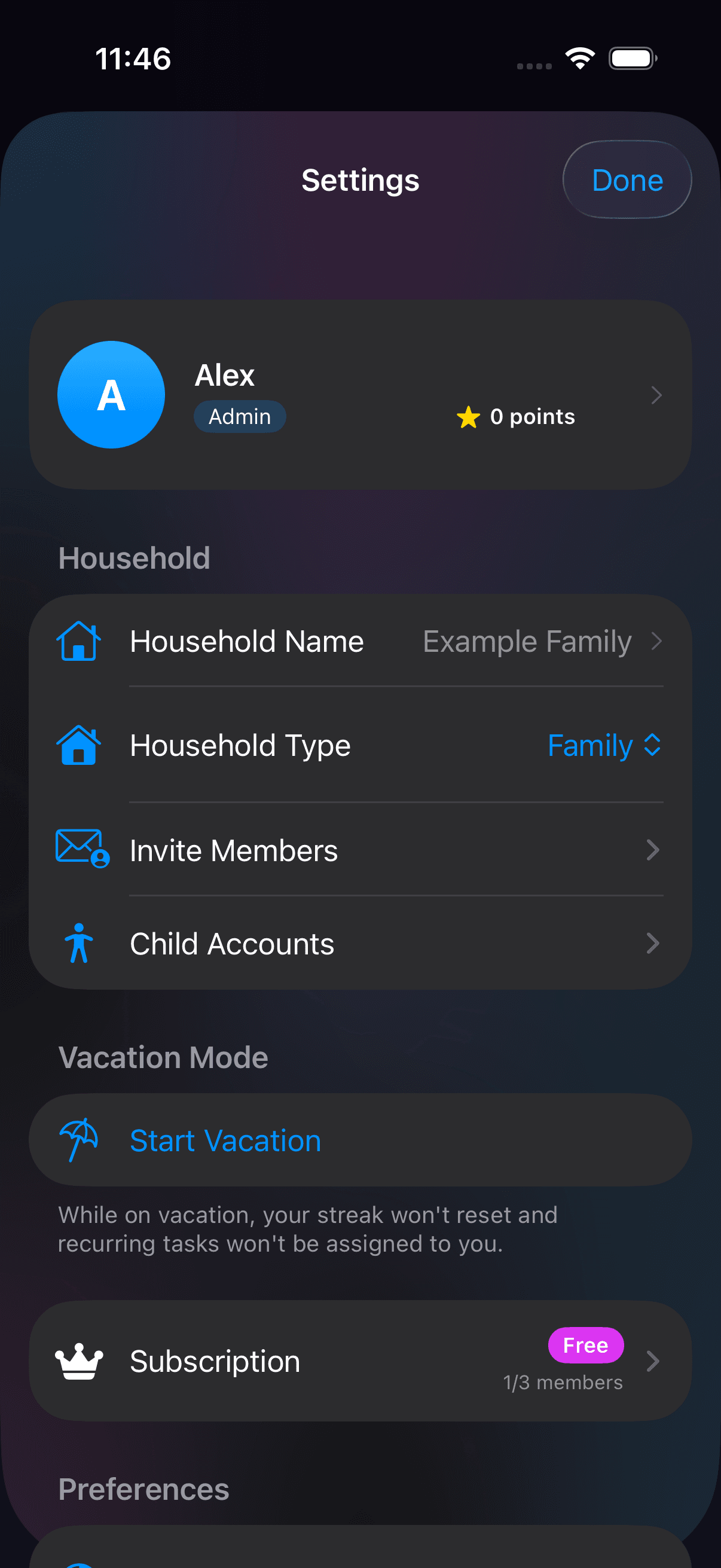
Parent device · Open Child Accounts in the Household section of Settings. Open screenshot at full size (opens in a new tab)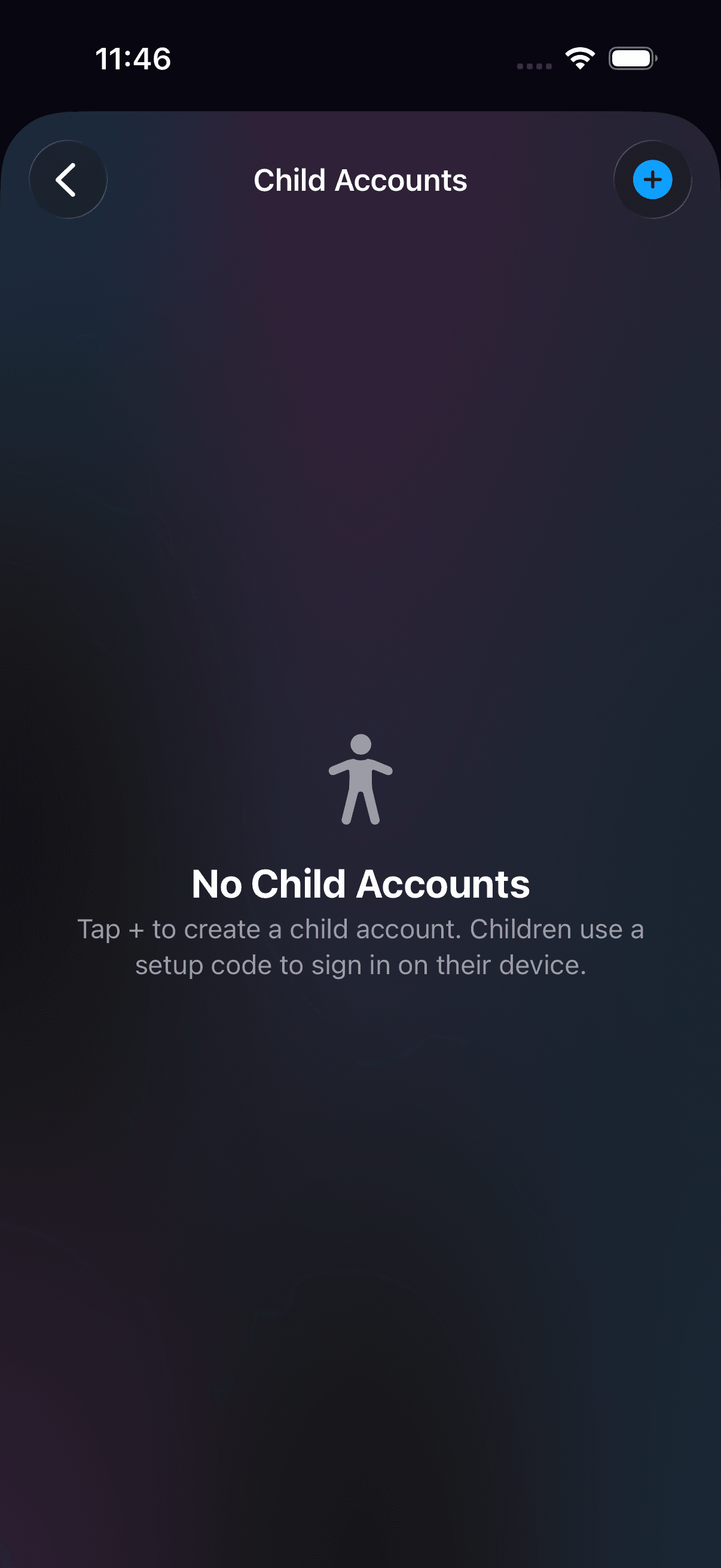
Parent device · Tap the plus button to add a child. Open screenshot at full size (opens in a new tab)Step 2Parent or admin device
Add the child’s name and avatar
On Add Child, enter a Display Name, choose a Background Color and an icon under Choose an Icon. Scroll down to find Create Child Account, then tap it. Talli doesn’t ask for the child’s email, birthday, or a password. If the household already has 10 people, you will need to free up a spot before adding a child.
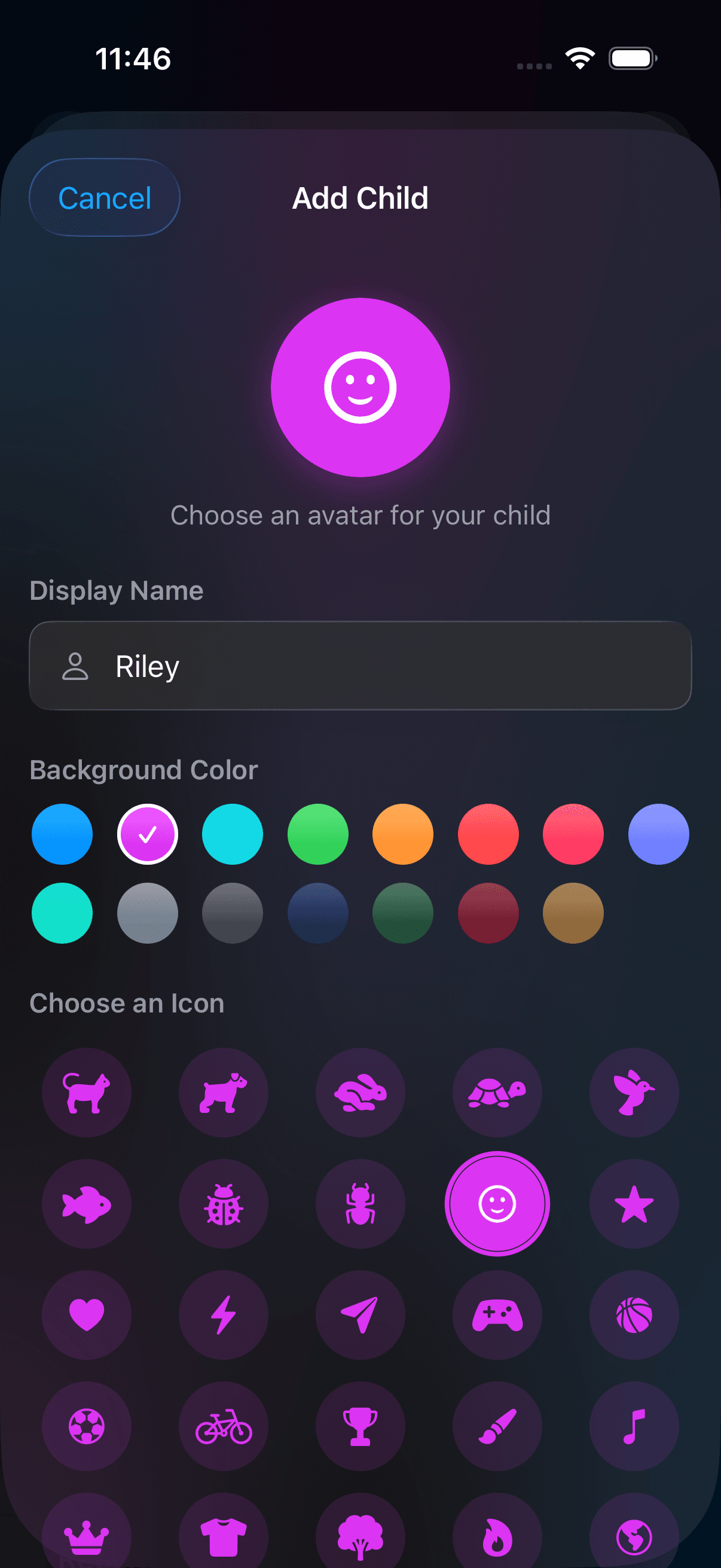
Parent device · Choose a display name, background color, and avatar. Open screenshot at full size (opens in a new tab)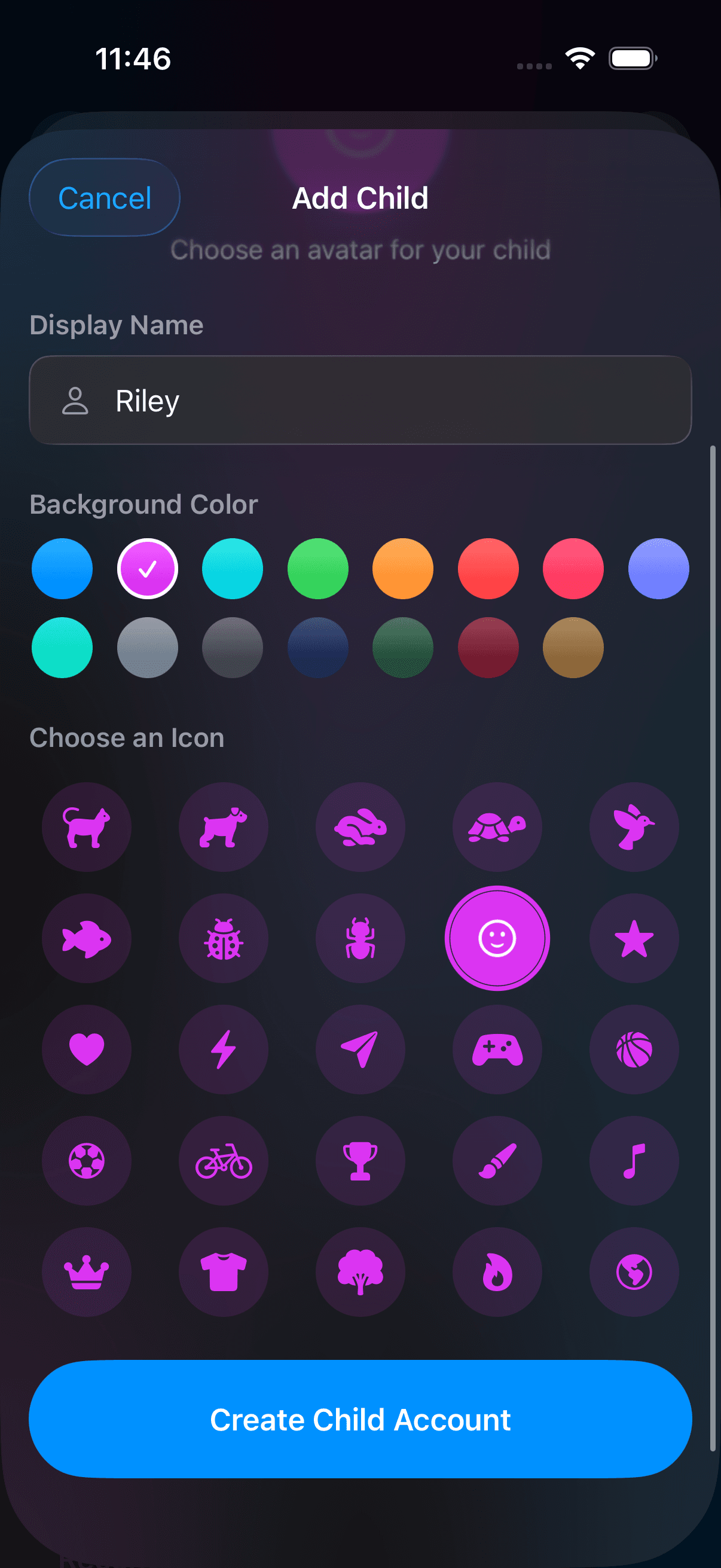
Parent device · Scroll down and tap Create Child Account. Open screenshot at full size (opens in a new tab)Step 3Parent or admin device
Share the QR code, link, or setup code
The setup sheet, titled Set Up followed by your child’s name and Device, shows a QR code and the setup code. Have your child scan the QR code with their camera, tap Share Invite Link to send the link to their device, or use Copy Link or Copy Code. The code works once and expires in 1 hour. When you add a child from Settings, the code is shown only this once, so finish on the child’s device before tapping Done. The code signs your child in, so share it only with them.
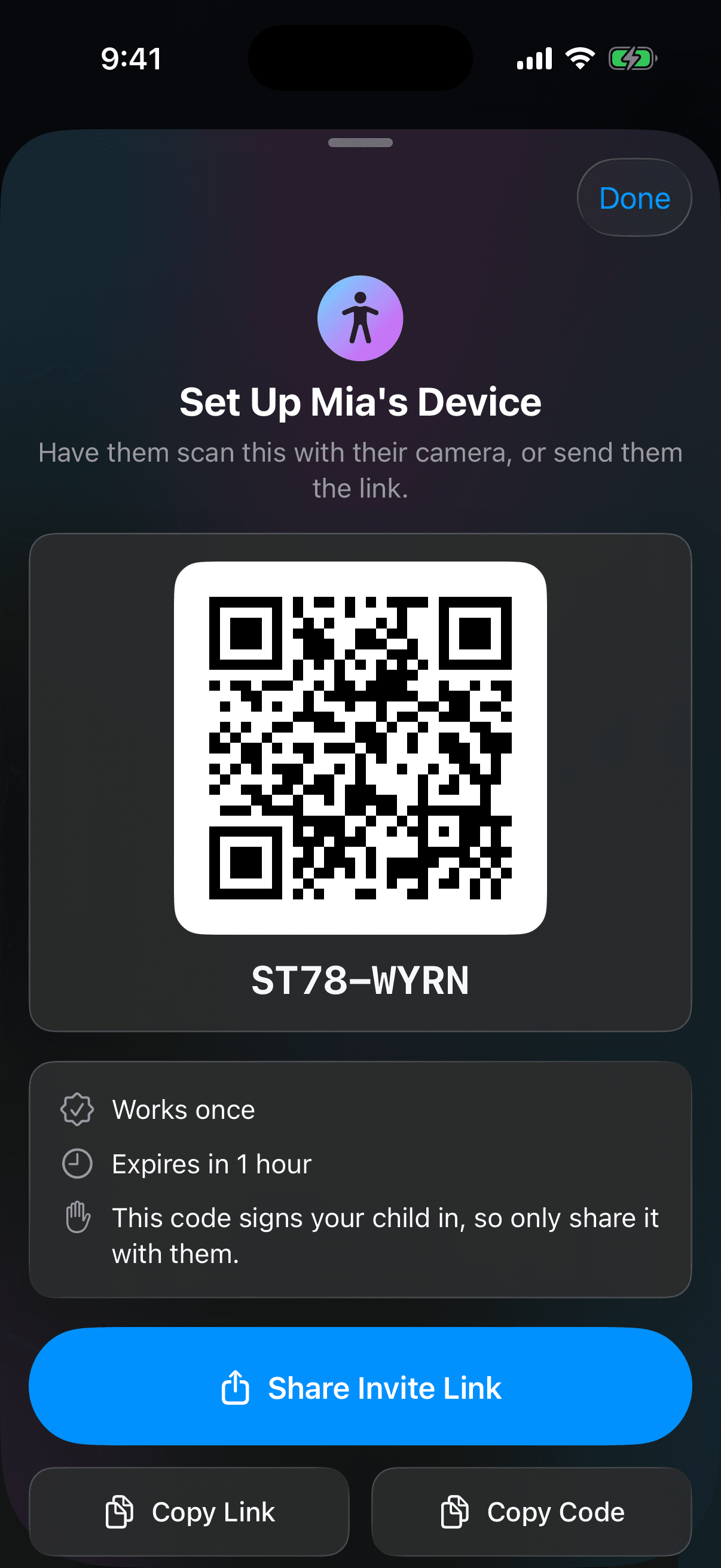
Parent device · Have your child scan the QR code, or share the link or code. The pictured code cannot be used to sign in. Open screenshot at full size (opens in a new tab)Step 4Child’s device
Open the setup on the child’s device
Scanning the QR code or opening the link on the child’s device opens Talli with the code already filled in. If Talli was installed afterwards, tap Paste next to Have an invite link? on the welcome screen. To type the code instead, tap I’m a kid on the welcome screen. The child does not create an adult account or provide an email address.
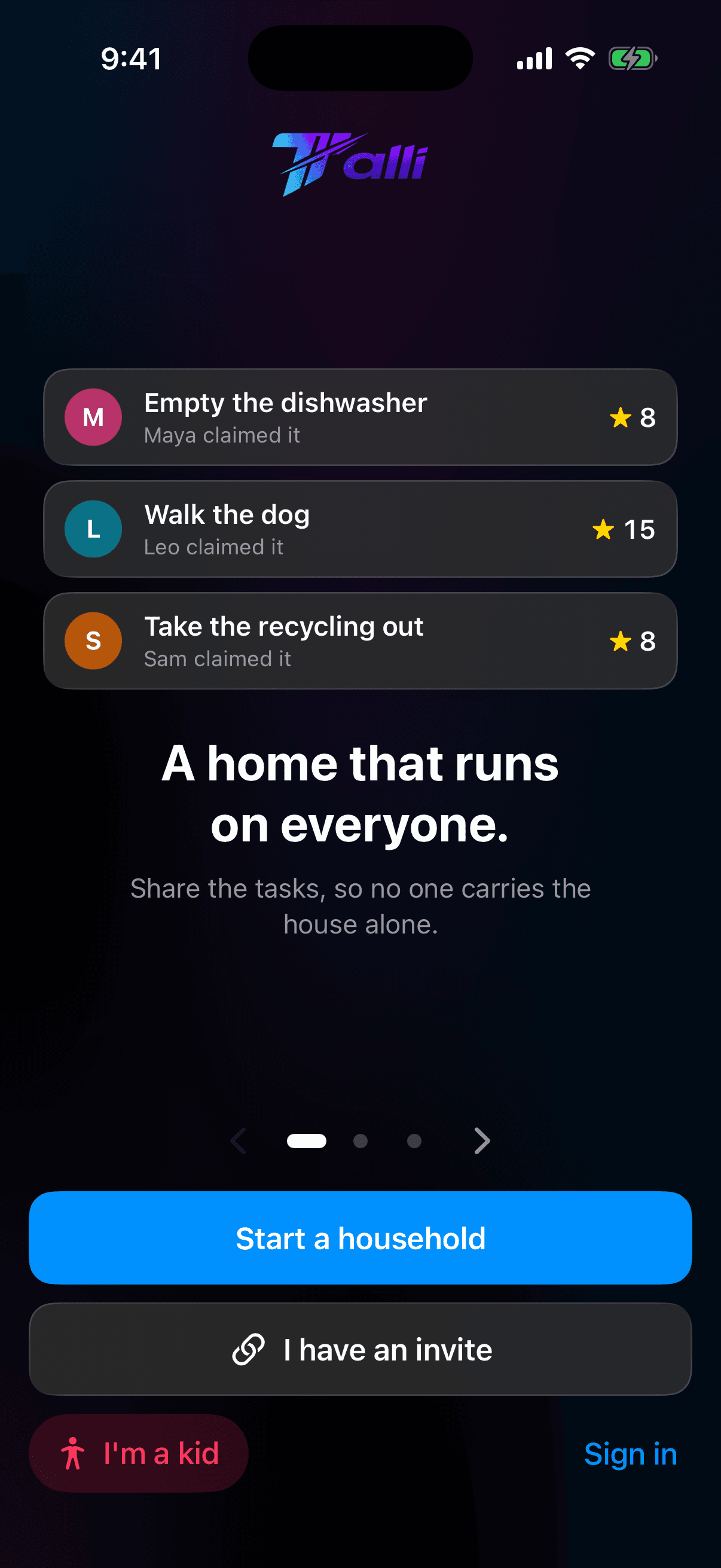
Child’s device · Scan the QR code or open the link, or tap I’m a kid to type the code. Open screenshot at full size (opens in a new tab)Step 5Child’s device
Check or enter the setup code
If the child arrived from the QR code or link, the code is already filled in and the screen says it is ready. Otherwise, type the code from the parent’s device in the XXXX-XXXX field. Tap Join My Family. Use a child setup code, not an adult invite. If the app says the code has expired or didn’t work, ask the parent for a new one; after several wrong tries the app asks you to wait a minute before trying again.
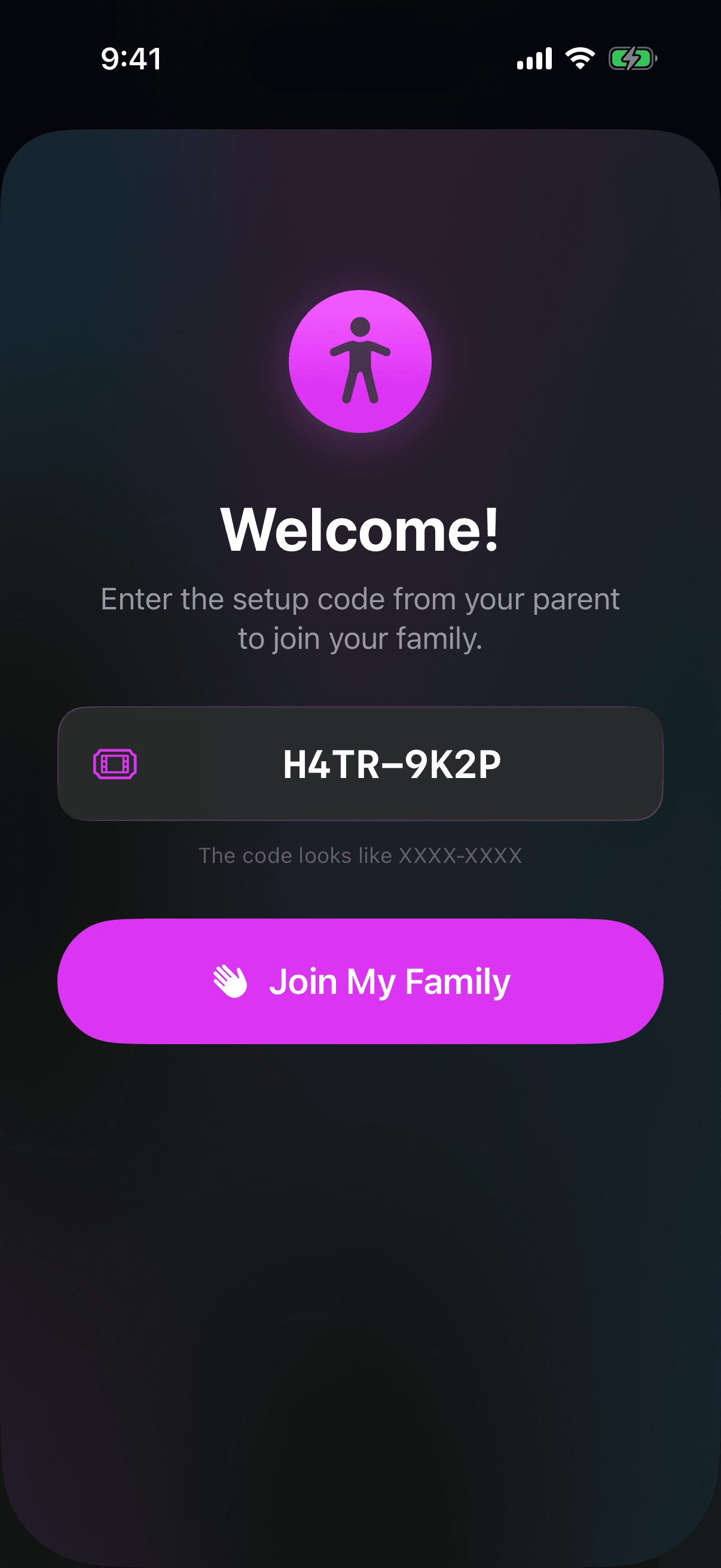
Child’s device · Enter the setup code, or check that it is filled in, then tap Join My Family. Open screenshot at full size (opens in a new tab)Step 6Child’s device
Choose and confirm a PIN
After the code is accepted, the app greets the child by name. Enter a 4-digit PIN under Your PIN, enter it again under Confirm PIN, then tap Set My PIN. This PIN opens Talli on this device, and Talli asks for it again after the app has been closed for a few minutes.
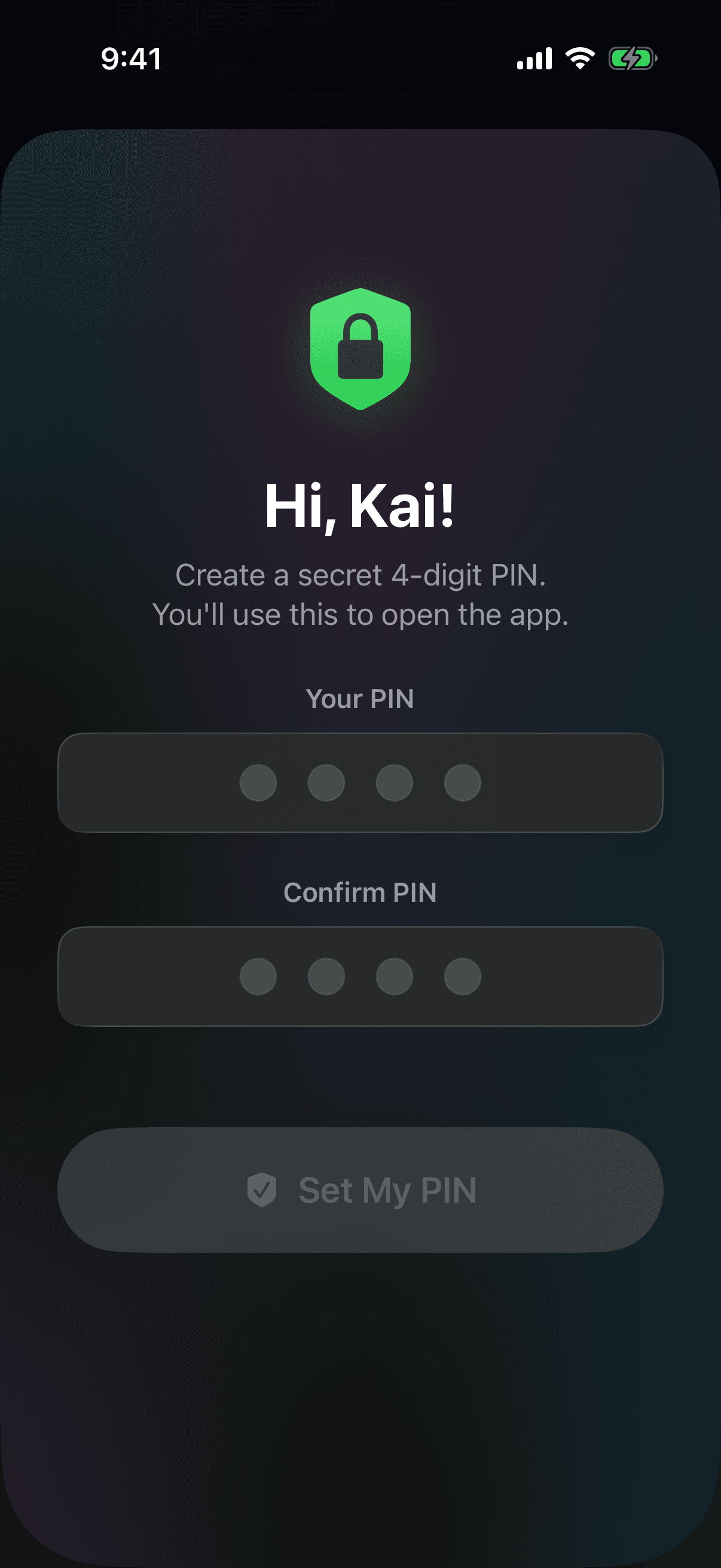
Child’s device · Enter and confirm a four-digit PIN. Open screenshot at full size (opens in a new tab)Step 7Both devices
Check that setup is complete
On the child’s device, check that the dashboard opens with the expected name and avatar. On the parent’s device, reopen Child Accounts and check for the child’s row. The household membership is added when the setup code is redeemed, so do not expect the completed join immediately after creating the code.
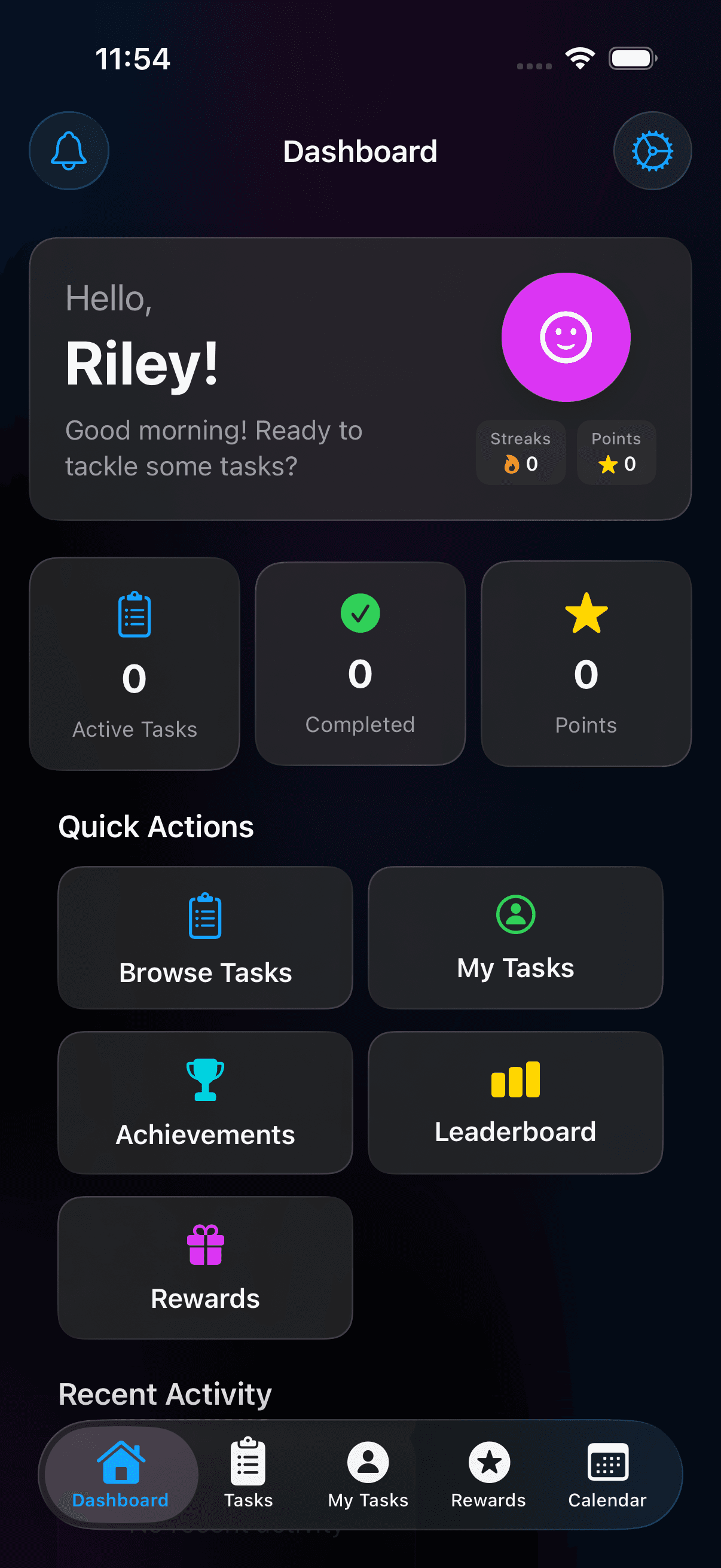
Child’s device · Check that the dashboard shows the correct name and avatar. Open screenshot at full size (opens in a new tab)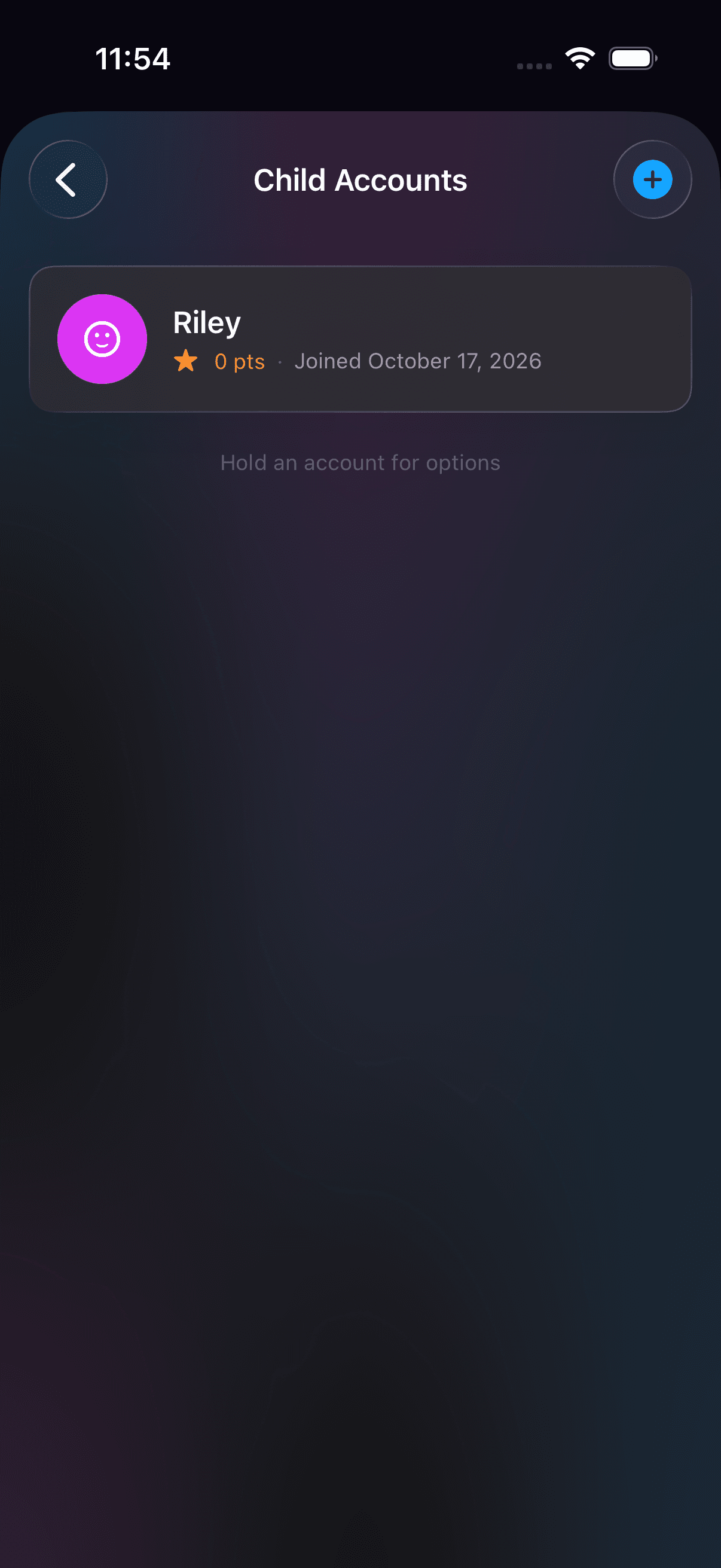
Parent device · Check that the child appears in Child Accounts. Open screenshot at full size (opens in a new tab)Step 8Parent or admin device
Find account options later
In Child Accounts, press and hold an existing child’s row to see New Login Code and Remove Account. New Login Code opens the same setup sheet with a fresh QR code, link and code. Remove Account permanently deletes the child’s account, including their points and task history; it is not a sign-in or PIN reset option.
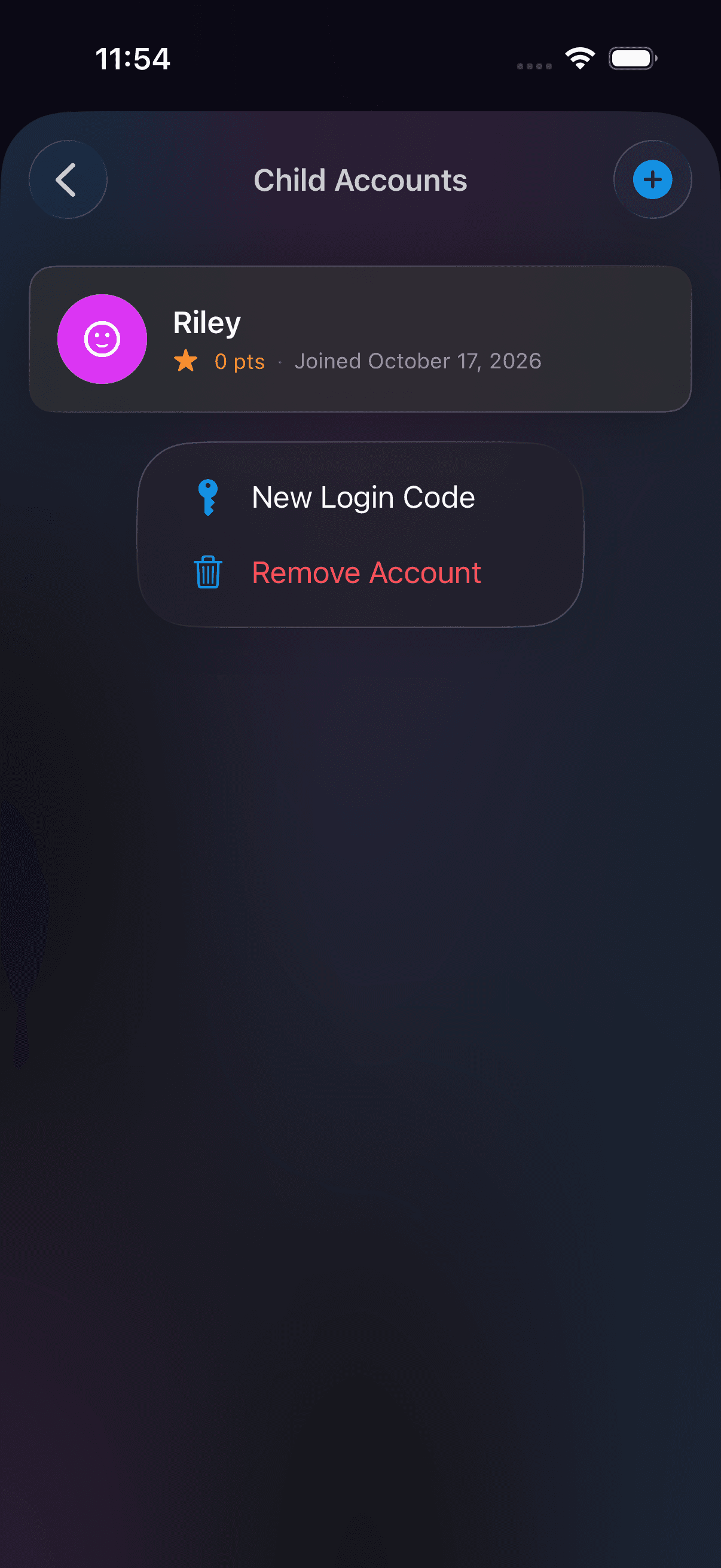
Parent device · Press and hold a child’s row for account options. Remove Account is permanent. Open screenshot at full size (opens in a new tab)
Screenshots show example household data.
Keep the setup code until the child has joined
If a code is lost or expires, press and hold the child’s row in Child Accounts and tap New Login Code. The new code also signs the child in on another device, where they choose a new PIN. It does not replace a PIN on a device that is already set up: that device says it is already set up. A PIN lockout countdown only lets the child try again. If no child row is visible, contact support rather than creating duplicate accounts.
Ready to try it at home?
Download Talli on iPhone or iPad and start with the tasks your household repeats most.