
Points, rewards, and the leaderboard
How to earn points on approved tasks, spend them in the rewards shop, and follow the household leaderboard.
In Talli, every approved task pays out points automatically — no one keeps score by hand. Those points spend in a rewards shop your household's admin stocks, and a weekly leaderboard shows who's carrying the load. This guide covers the full loop: earning, redeeming, and seeing where you stand.
Step 1
Earn points by completing tasks
Claim a task, do the work, and submit it. Once it's approved, the points land in your balance and you get a "Task Approved!" notification showing what you earned. If the task offers a speed bonus, submitting within its time limit earns extra points — the clock runs from when you claim or start the task to when you submit it, so a slow review never costs you the bonus.
Step 2
Browse the rewards shop
Open the Rewards tab, or tap the Rewards Quick Action on the Dashboard. The header shows Your Points, and the Shop tab lists everything you can redeem, filterable by category chips: Entertainment, Treats, Privileges, Money, Screen Time, and Experience. Rewards you can't afford yet show a lock and can't be tapped.
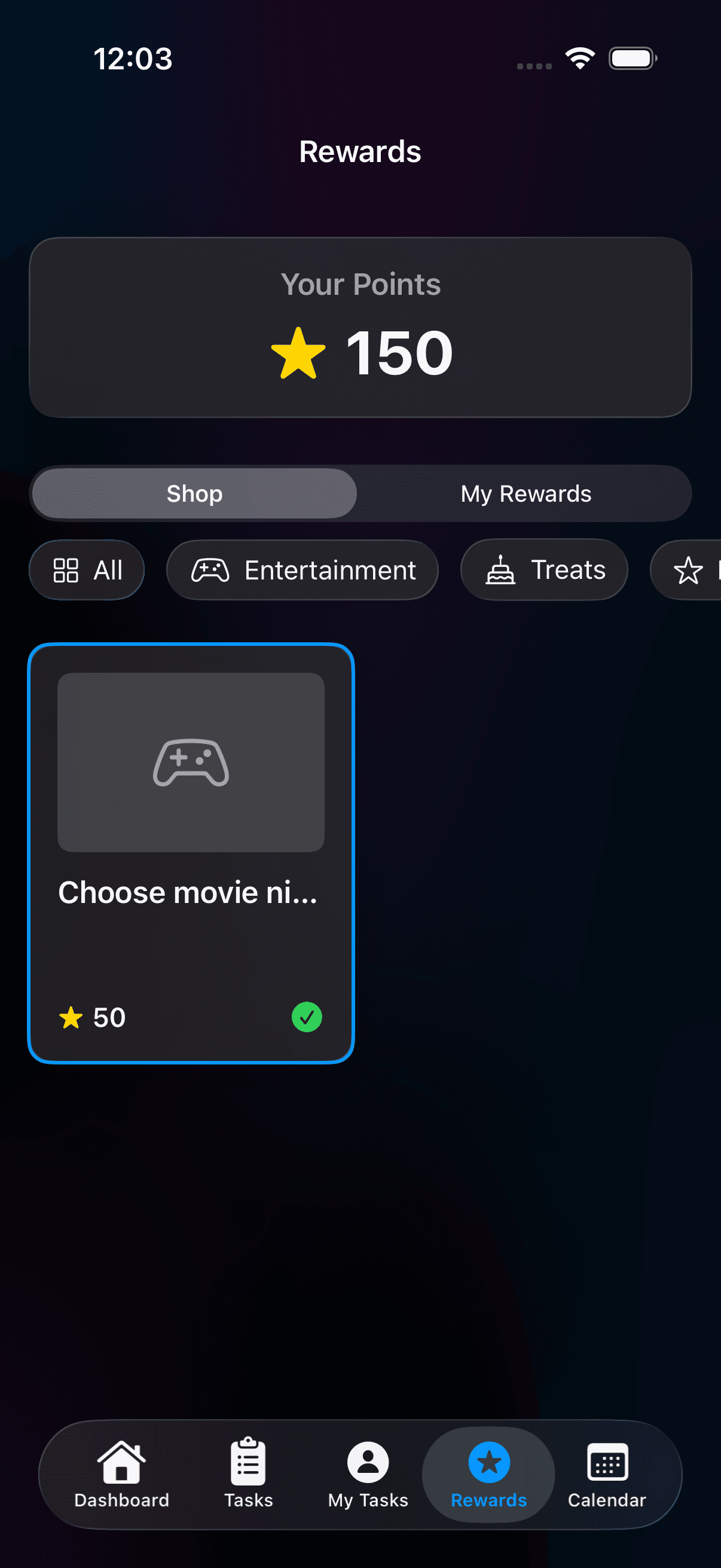
Browse rewards and check their point costs. Open screenshot at full size (opens in a new tab)Step 3
Redeem and track your reward
Tap a reward to open the Confirm Purchase sheet, which shows Cost, Your Points, and Remaining, then tap Purchase Reward. Points come off your balance right away, and the reward sits in My Rewards as Pending until an admin marks it Fulfilled — or Paid, for money rewards.
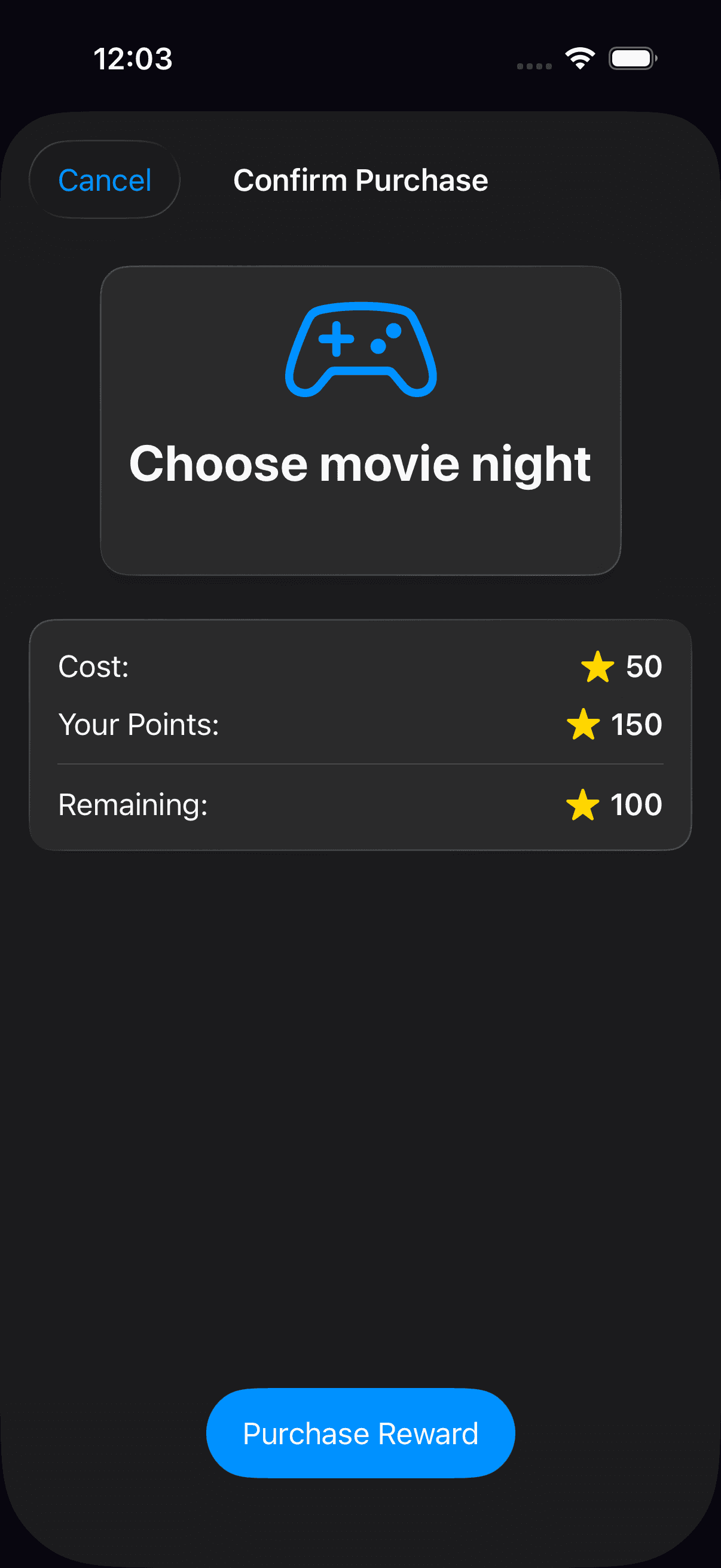
Review the cost and remaining balance before redeeming a reward. Open screenshot at full size (opens in a new tab)Step 4
Stock the shop as an admin
Open Rewards, select Admin, then Rewards to manage the household’s catalog. Tap the plus button to open Create Reward. The sparkles button opens Suggestions, a library of ready-made reward ideas included with Talli Plus; on the Free plan it shows a View Plans button instead. The Adjustments tab lets admins add or deduct points manually with a required reason.
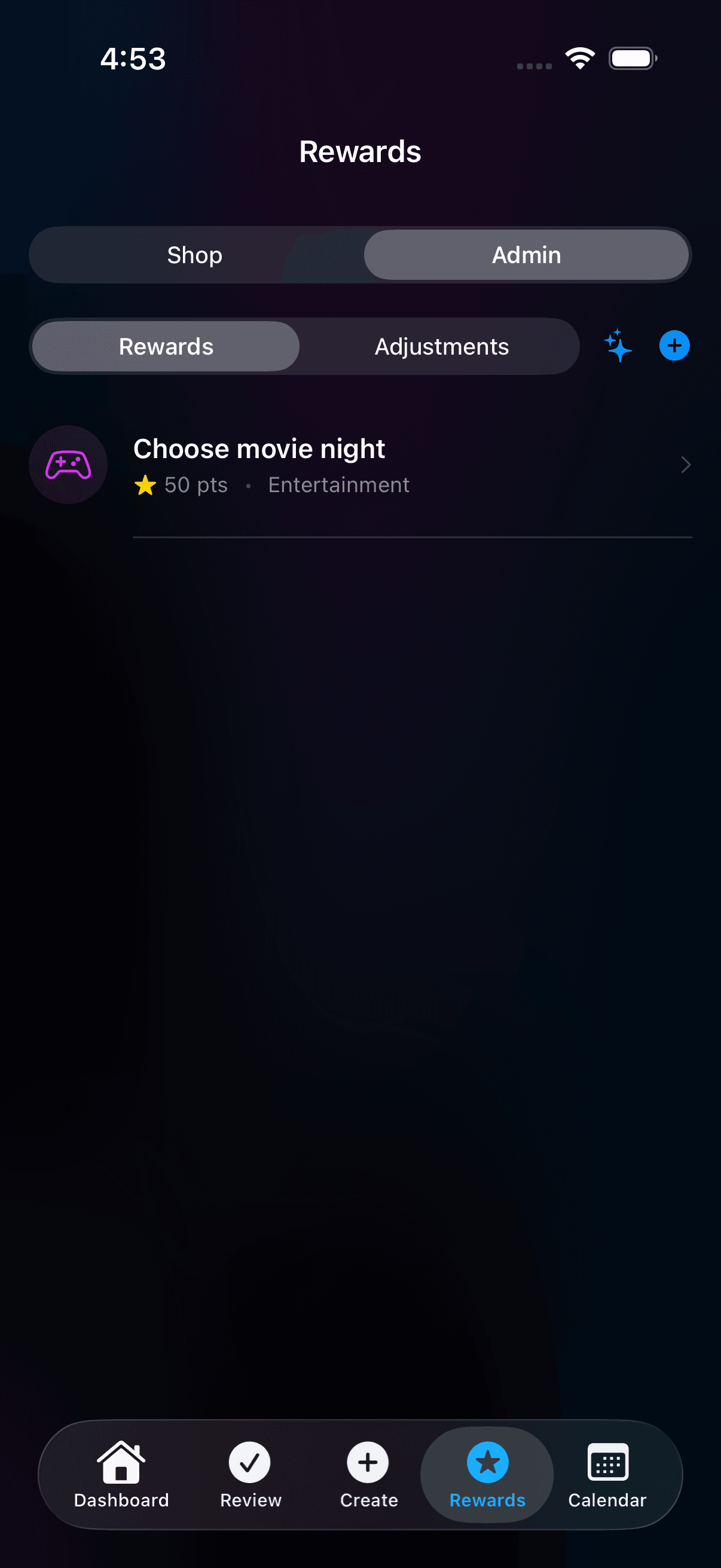
Admins can manage rewards from the Admin tab. Open screenshot at full size (opens in a new tab)Step 5Admin
Set up a reward
In Create Reward, enter a title and description, set its point cost, and choose a category. Scroll to review Limited stock, Available Immediately, the household’s admin-only visibility option and an optional link before creating it.
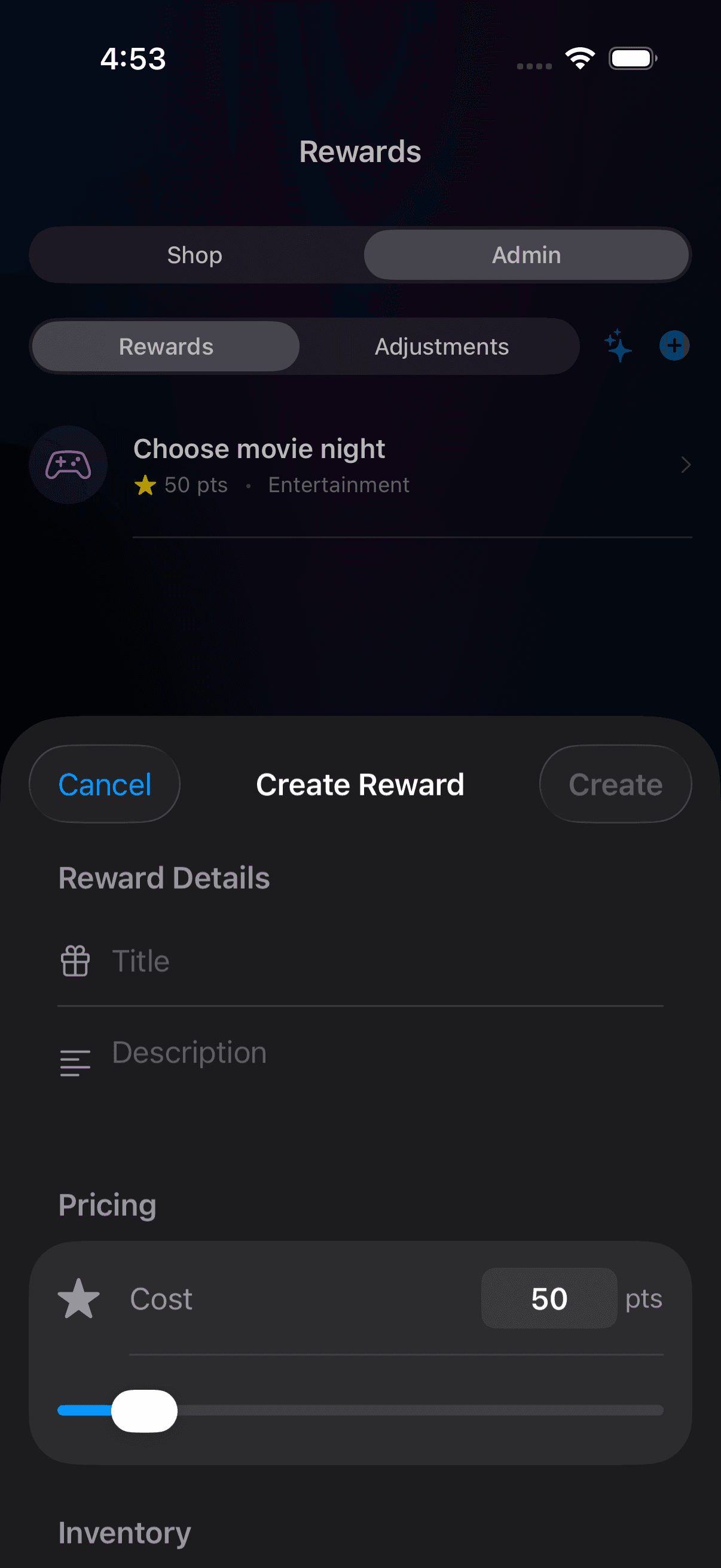
Give the reward a name, description, and point cost. Open screenshot at full size (opens in a new tab)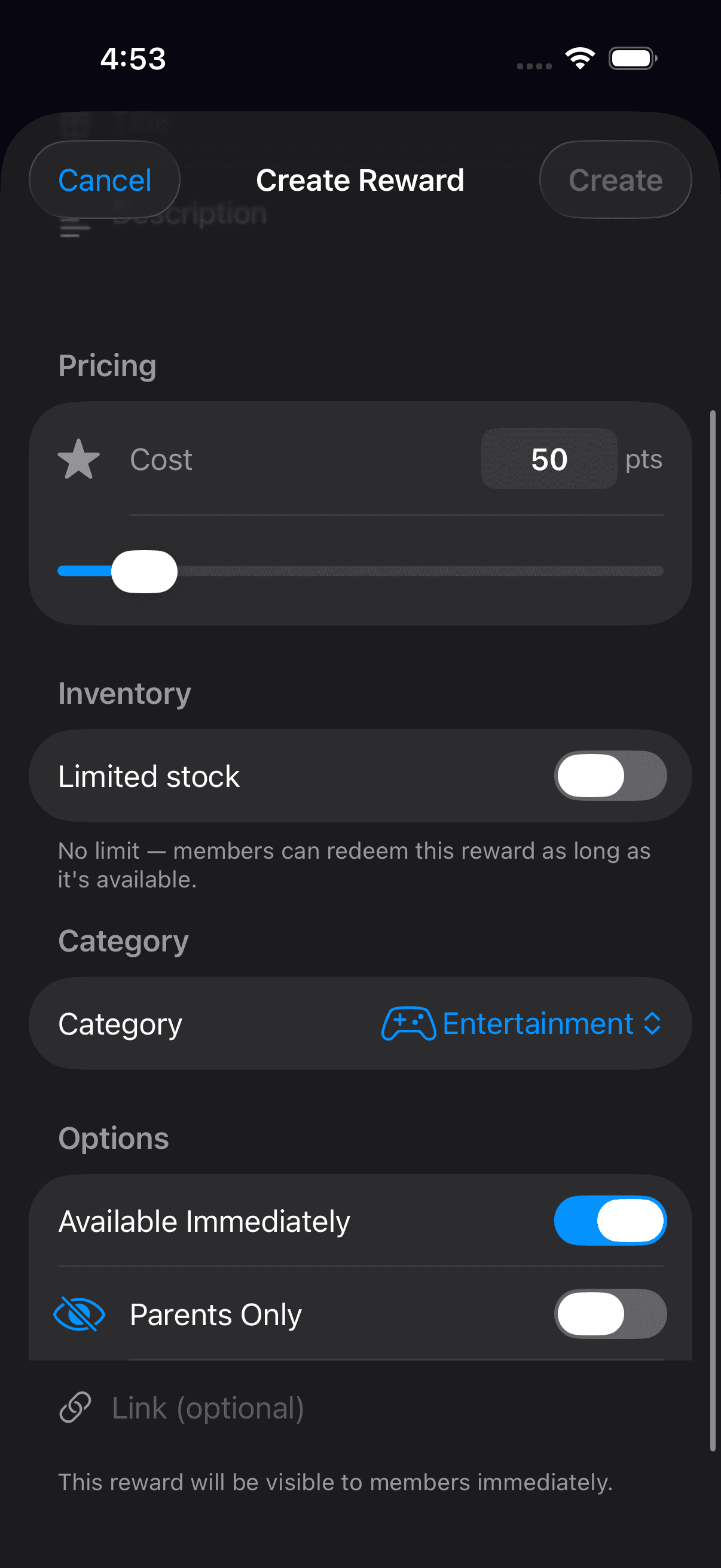
Choose a category, availability, and any stock limit. Open screenshot at full size (opens in a new tab)Step 6Admin
Review a pending redemption
Open the Review tab, choose Redemptions, then select a pending reward to see Redemption Detail. Check the member and reward before using Mark as Fulfilled when it has been delivered. Money rewards show Mark as Paid instead, which only records that you paid; Talli does not send money. Revoke Reward is a separate action and asks for a reason.
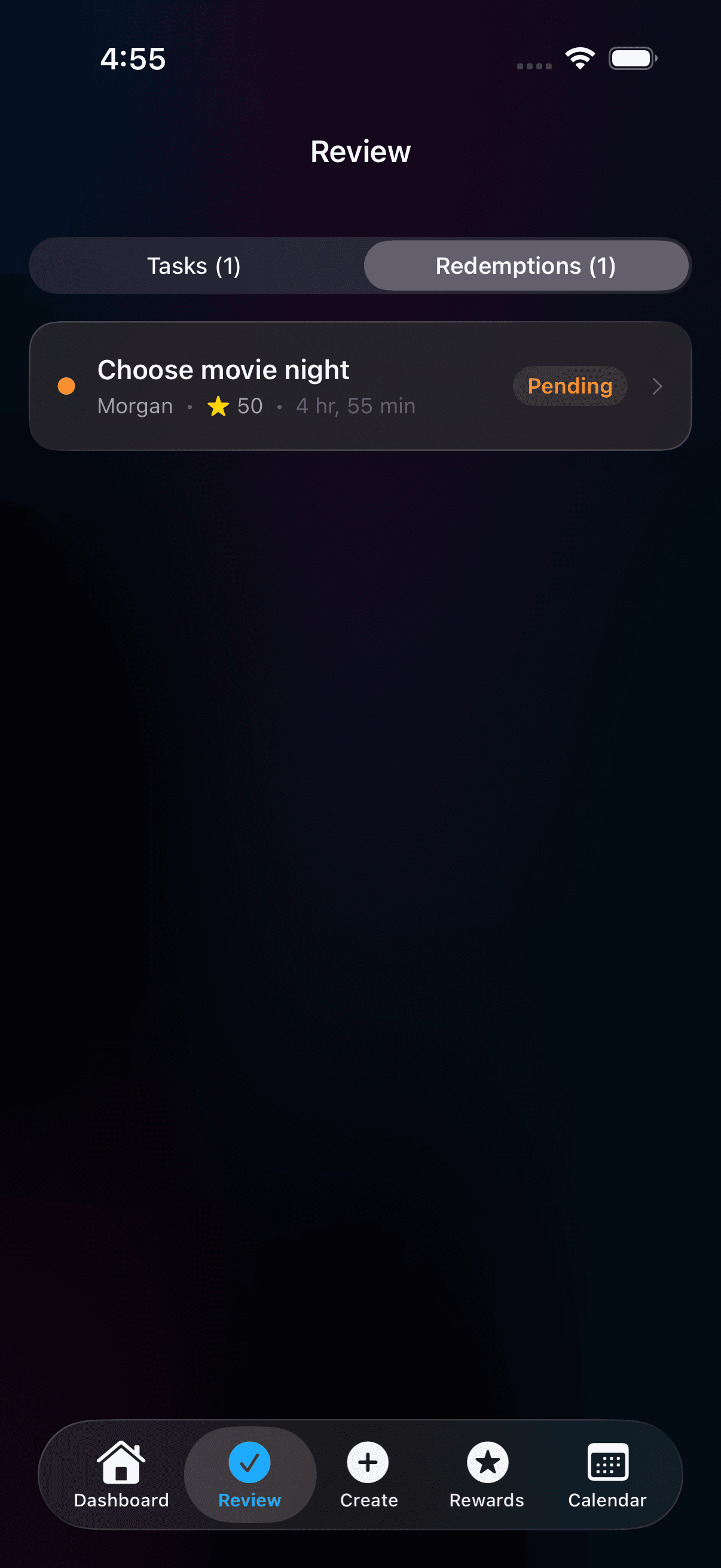
Find pending reward requests under Review → Redemptions. Open screenshot at full size (opens in a new tab)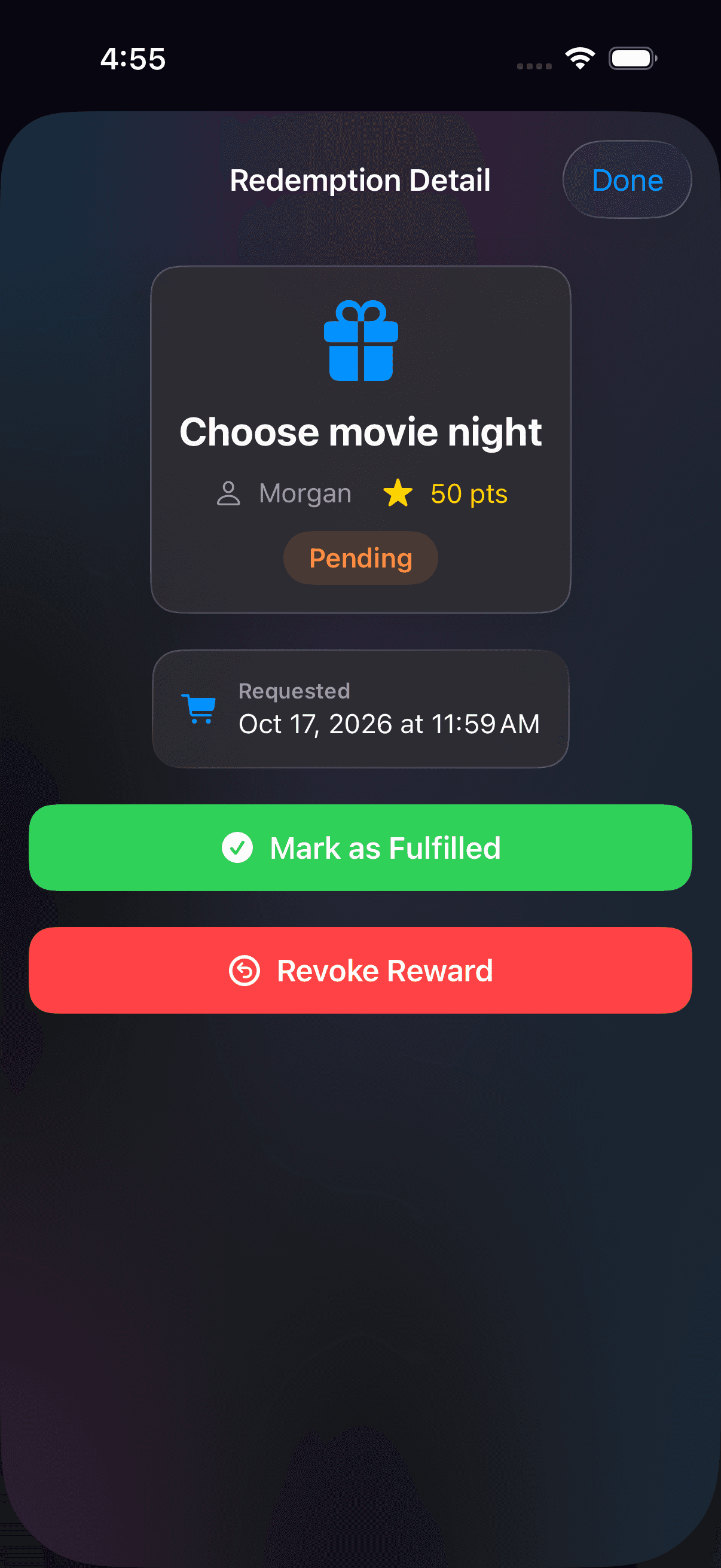
Mark a reward as fulfilled after your household has delivered it. Open screenshot at full size (opens in a new tab)Step 7
Check the leaderboard
Once more than one member has activity for the week, the Dashboard shows a This Week's Leaders card with the top three; tap See All or the Leaderboard Quick Action for the full view. Switch between This Week, Last Week, and All Time, and tap any member for a Points Breakdown of Tasks versus Bonuses plus their completed task list.
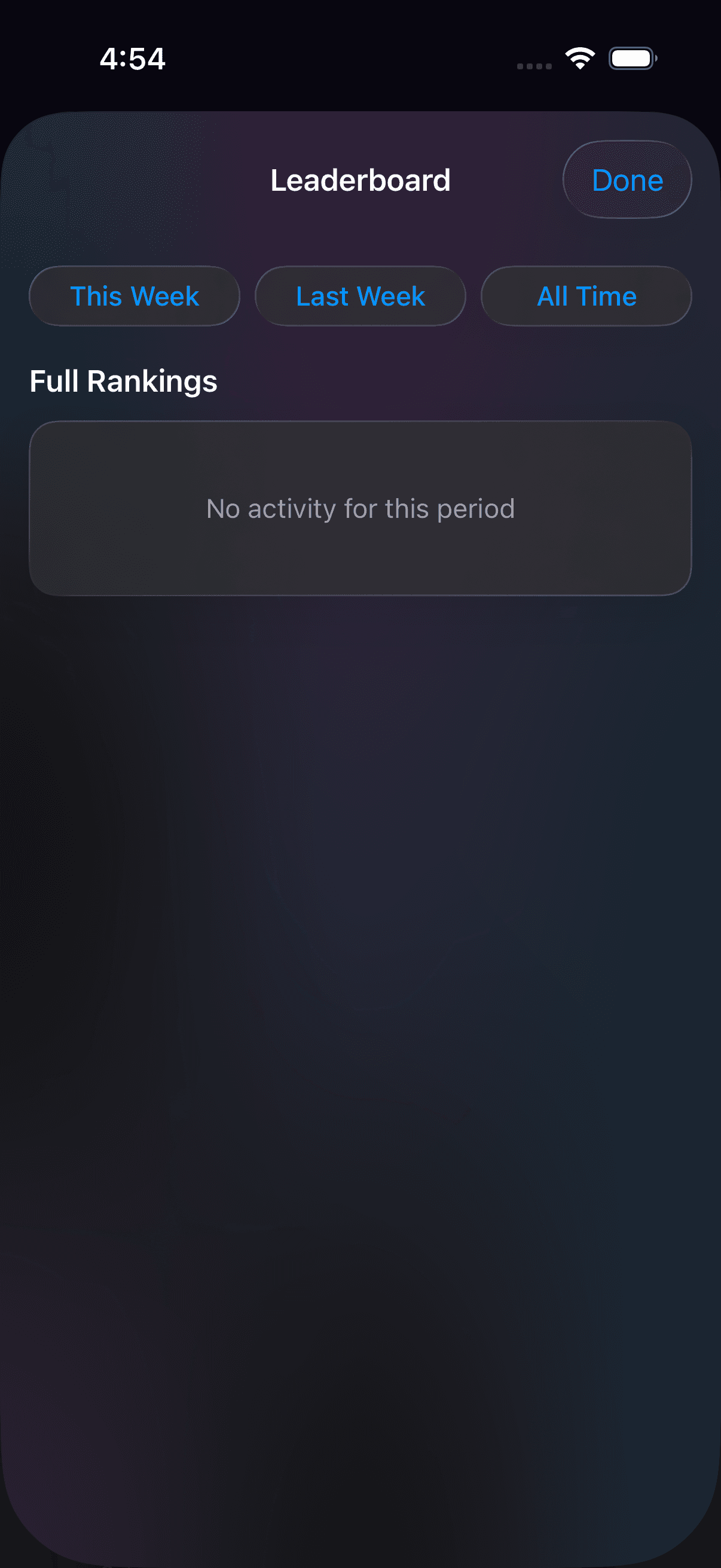
Choose a time period to view the household’s rankings. Open screenshot at full size (opens in a new tab)Step 8
Collect achievements as you go
There are 19 achievements across five categories — Tasks, Streaks, Quality, Points, and Milestones — from First Steps for your first task to Century Club at 100 tasks. They unlock automatically when an approval pushes you past a threshold. Members and children open the Achievements screen from the Achievements Quick Action on the Dashboard; admins find View Achievements in their profile. It shows a progress bar with how many of the 19 you've unlocked.
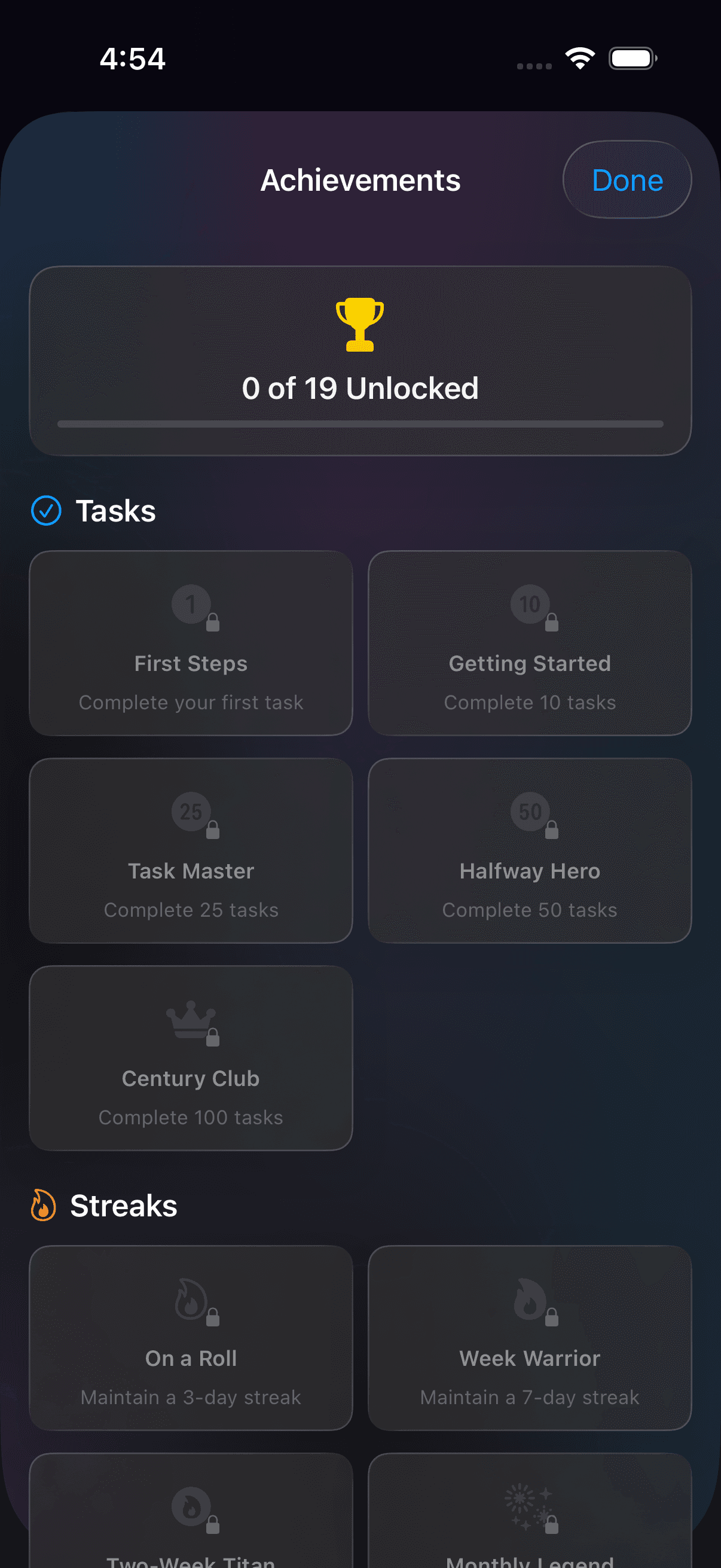
View achievements and progress toward unlocking them. Open screenshot at full size (opens in a new tab)
Screenshots show example household data.
Spending never hurts your standing
The leaderboard counts only what you earn — task completions and speed bonuses. Buying rewards deducts from your spendable balance, but it never lowers your ranking or takes back a points achievement, so redeem freely.
Ready to try it at home?
Download Talli on iPhone or iPad and start with the tasks your household repeats most.